How
to Register as a New Member? |
|
|
Click on "Register"
button available on bottom-right corner of Login frame.
 |
Fill in necessary
your company details, select a Member User name, Member Password
and register as a Buyer. |
Email will
be sent to you on your mail account which you provided in registration
details. |
Click on the link
provided in your email to activate your account. |
For Best performance use internet explorer 6.0 or above browsers. Bidders using Mozilla Firefox, Google Chrome or Netscape may face problem so internet explorer 6.0 or above versions are recommended |
|
|
How
to Bid as a Member? |
|
Collect your
unique Auction login name and Auction password from Synise Technologies
Ltd. after submitting the bidder deposit.
|
|
|
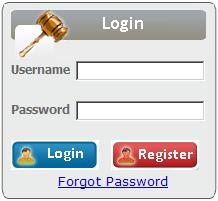 |
Type in your
User name, Password and then click on "Login"
button. |
|
After Login, Bidder Agreement page will appear. Click on " I Agree"
button. The page will redirected to bidders homepage.
|
|
|
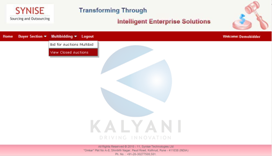 |
On Bidders homepage
you will see "Auctions" menu on the menubar. From Auctions
menu select "Bid
for Auctions " option. |
|
On next screen you will see the Company Name for which you have been activated.
You will see the Lot for which you have been activated.In this auction,it is mandatory to
accept bid on first round.
If you are not accepted bid for first round,you will not eligible for auction.
|
|
|
|
|
After start of Auction you will see Accept and Reject button.
You have to select My Quantity else it will be deafult minimum.
|
|
Click on Accept button to accept ASKING PRICE with selected QUANTITY.
Confirmation dialouge box will apppear with ASKING PRICE and QUANTITY.
After click on OK button,your bid is accepted.You will be eligible for next round.
On click of Reject button,auction will be closed for you.
|
|
|


